Monday, August 1, 2011

Google+ startup guide

New week, new blog entry. In the future, I try to post some interesting stuff on a weekly basis in the topic of photography, technology, or something else that comes into my mind.

Google+ is the new hotness in the social network scene. It is just a few weeks old, but it is growing very rapidly. According to Paul Allen, it reached 18 million users in the first 2 weeks.

Why it is interesting? Watch the following video, and you will see it:


The conclusion of the video is that if you are a Google user already (Blogger, Gmail, Search, Maps, etc.) then Google+ will make your experience better in the long run in these products.

Ok, but how can I know more about it? How can I start?

Here is a very nice presentation for this. Click through and see how to set up your circles and how to start a video chat with friends. If you want to see it in a bigger resolution, click here.


Now you know how to set up circles, you just need some friends. The following article will give you a nice overview on how to import all your data (friends, photos, videos) from Facebook to Google+. I migrated my friends this way, but I did not bother migrating other things, because I can always re-upload my photos from my computer and my videos are already in YouTube.

How to Migrate Your Facebook Account and Data to Google+


Now you have your friends invited and you are ready to socialize. Until they join, you can try something: find a Hangout (a group video chat) that you are interested in in the global list of hangouts. Everyone can register his own hangout there, you can browse them and join if something looks interesting. There are also scheduled hangouts in the list:

Where to hangout at Google+


To get some more information about the project:
  • Here is my profile, you can follow me if you found this tutorial interesting. You can find some interesting people to follow there, too.
  • Vic Gundotra and Bradley Horowitz are good to follow if you want to know what are the latest informations in Google+.
  • There is also a webpage with the latest changes: What's new in Google+.

If you use Google Chrome, then you can find useful helper extensions in the following article:

Top 15 Chrome Extensions For Google Plus | 15 Most Used Chrome Extensions For Google Plus


I personally suggest the following extensions from the list:
  • SGPlus - Allows you to share to Facebook (and Twitter) directly from G+. A must have if you did not convince all your friends to go to G+ yet. It can also merge your Twitter and Facebook stream into G+, but it caused a slowdown, so I turned it off.
  • Usability Boost for Google Plus - Changes the layout of Google+, for example the top notification bar is kept always visible so that you can share even when you are in the middle of the stream and you will never miss a notification. It is also makes you be able to star posts to read them later, which is very useful.
  • +Photo Zoom - to enhance your photo viewing experience in Google+.
  • Helper for Google+ -Multifunctional extension. I use it for the Translate link only, because it slowed down G+ very much if I used the other features.

If you went through this article by this far and went through all the links, then you are a Google+ expert now, you can probably get more information about the project yourself.

For technically and business oriented people, there is an interview with Vic Gundotra and Bradley Horowitz in TechCrunct TV when they talk about Google+, the past, present and the goal of the project. Worth watching.

I hope this link collection was useful, and, as usual, feedback is always welcome!

Sunday, July 24, 2011

Flyin' on Business Class

Last month I had an opportunity to try out how flying on business works. I flew a few times back and forth to the US earlier, but I always took the Economy seats. It is possible to survive such a travel, but usually hard to sleep on the not too comfortable seats and the space is not really much for a 1.93m tall person with long legs like me. Not to mention the amount of attention you get from the flight attendants throughout the flight.

This time I did not complain about the available space, food, nor the service.

I flew from Budapest to San Francisco, through New York and from Los Angeles to Zürich through Atlanta. These 4 flights were all operated by Delta this time.

The check-in experience was not that really great in Budapest: I had to wait for about 10-15 minutes in the priority check-in line. Well, there were a lot of people even for Business class. The security was fast and when I arrived to the gate, I took the priority line to the airplane, so I could settle very fast.

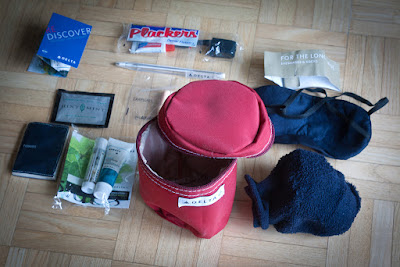
Leg space: more than enough. There were a lot of thing stuffed into the back pocket in front of me. Menu, blanket, pillow, magazines, headphones and a nice small bag of useful stuff for a long flight:


The stuff in the bag were the following:
  • Socks: the A/C was on full throttle of course, so it was pretty useful.
  • Eyeshade: I think I've used it, pretty practical.
  • A Delta discount flyer: useless.
  • Toothpaste and toothbrush: nice touch.
  • A pen: well, good for a swag.
  • Earplugs: practical for someone who needs these kind of things.
  • Tissues.
  • Various creams: my girlfriend liked them, she told this is a good brand. I am not a cream-geek, so I don't know.
  • HintMint: I did not really like it. :)
Nice pack, I kept it.

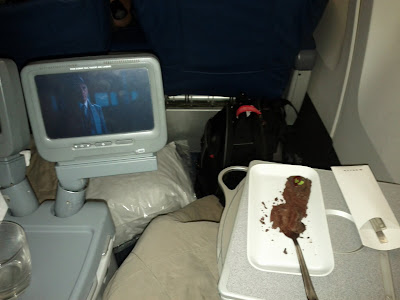
I could not complain to the menu either. There were 4 courses, the main course could be chosen from a couple options. I chose some chicken. The portion was big enough. The last course was the dessert. This time, it was a chocolate cake:


In this photo, you can also observe the amount of leg space available...

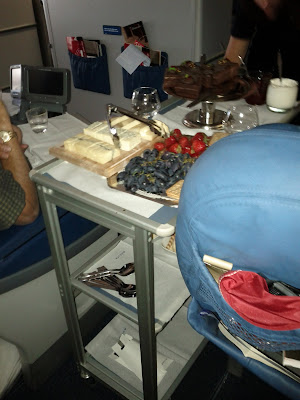
But back to the desserts. This was the selection:


Cheese-cake, ice cream sundae, chocolate cake, fruits. Not bad. :)

30 minutes after I finished with my portion, the flight attendant asked if I asked for strawberries. She was very sorry to forget who was it. I said to not worry I could take it, so she left it to me:


I expected to have a plug for my laptop, but unfortunately it was not working. First of all, it was very hard to plug the Apple charger to the socket due to the limited space around it. After I managed to force it in, it turned out that there is no power in my seat. The flight attendants couldn't help. Argh! Next time I'll bring an extension cable which will eliminate at least that part of the problem.

The seat was very comfortable, though. The economy seats usually have one button to change the tilt of the back, but here there were about 20 different buttons to change everything: the tilt of the back, the feet position, the length of the footrest, etc. It was definitely more comfortable than the economy ones.

The headphones were noise-canceling ones, watching movies was nice with them. My program was: Adjustment Bureau, Unknown, and the first half of Hall Pass.

After the movies, I made some work in the computer (until the juice lasted), and then got some food before landing, then we arrived in NY in time. I tried not to sleep on this flight, because this was an in-day flight (from noon to afternoon).

Oh, btw, there was Rene Russo on the plane. She looked much younger than she is.

At JFK, I was the second person out of the airplane and I had 0 waiting time at the immigration office. The luggage waiting time was slightly longer, but there were no real issues, I managed to catch my next flight to SF.

In the JFK - SF flight, there were no "Business" class, just "1st" class. Fancy! At least the plug worked there, and I could use the interwebs for a $10 fee. It was funny posting to FB in 30k feet high. Well, this is not really a Business Class benefit, everyone could do that, only they did not have power plugs or just on selected seats. The leg space was big enough here as well, though no stuffed bag this time. The noise-canceling headphones were there as well.

The food was really good this time, too. I was really tired this flight (it was 4am in Budapest time when we took off), so that after doing some internet browsing and finishing Hall Pass (it was not that bad as I expected), I got some sleep. It was around 11:30pm local time by the time I arrived to SFO.

The way back was similar, with minor changes: internet in the first flight, sleep on the second. They asked me if they would wake me up for breakfast. After consuming the dessert (cheesecake), I managed to sleep about 6 hours.

So this was my "Business experience". I was appreciated it, I can tell that the seats were much more comfortable. It is also true that the ticket was not cheap.

As a side note, the best economy experience I had was in a flight from Zürich to Sydney through Dubai. Can you guess which airlines? Yes, Emirates. I flew on the Airbus A380 between Dubai and Sydney. There was an on-demand video with all the new titles, slightly bigger legroom than the usual economy standard, and I got two stickers which I could stick into your seat to indicate whether or not you wanted to get woken up for breakfast. The linked video introduces the first and the business class in the A380, I suggest taking a look at it. Pretty funny. Well, one time, maybe...

Tuesday, July 19, 2011

Business website and personal email with Network Solutions

This is a guest post by David Jackson from TotalMarketing.com.

Starting a website for your business can be a tricky process. However, if you decide to work through a professional website hosting company such as Network Solutions, the process can become a lot more simple, and your website will look all the more professional. You will be able to purchase a legitimate domain name upon which to build your site, and from there you can create just about any type of website you want to, with all of the features that you deem necessary or helpful. One thing that you may want to consider among these features is setting up a personalized email account that coincides with your business and its new website.

What this means is that rather than trying to run a business online and using your private email account (for example, myemail@gmail.com), you will become the owner of an email account that coincides directly with your business (something like myemail@mybusiness.com, for example). This gains you instant credibility in the eyes of your website’s visitors and those you do business with, as it simply provides you with a more professional image, and also helps to separate your private life from your business life. With an email account that exactly matches your business site’s domain name, you will simply be taken more seriously, and you will have a separate email account for all of your business concerns.

You can also feel good about your business email account as a reliable and hassle-free management system for your business-related emails. To begin with, your account format will be easy to manage. Additionally, however, you can set up the highest levels of virus and spam protection, meaning that your account will remain free of the annoyances of spammers or hackers. You will not receive emails that you won’t need, or that aren’t directly connected to your business dealings.

Securing an email address that matches your business domain is just one of the many perks offered by professional web hosting companies when it comes to setting up a site for your small business. With just a little work and a few small fees, you will be able to set up a site that is both professional and interactive, allowing you to run a thorough and legitimate business online. In the end, the benefits you pay for are up to you, but it is beyond a doubt that a professional web hosting company can help you to build a site you and your business can be proud of.

Sunday, July 10, 2011

Samsung Galaxy Tab 10.1 impressions

I managed to put my hands on to a Galaxy Tab 10.1 last week and I was happy to try it out. Thanks for the device for Slava.

After the package arrived, I removed the Amazon wrapping, and a nice box unveiled itself:


This is a 32GB Wi-fi only version, with 1280x800 TFT touch screen, Dual-core 2 x 1GHz CPU as I learned it after turning the box upside down.

I removed the serial numbers and other identifying numbers from the photo. I was too lazy, so I did it in Lightroom, these are the visible smudges at the side of the box. I was also lazy on taking the photos: I did not have my lights with me when I made the shots, and the indoor lighting was just enough for these. The built-in flash would have been even more lame, so after taking some test shots, I quickly abandoned it. Nevertheless I hope these photos and my experience will be useful for some.


The device is pretty nice, it smiled to me right after opening the box:


The box contained the charger with a US plug, the Samsung standard earphones (similar ones were given to the Galaxy S and Nexus S and the old Galaxy Tab), a small brochure about the device and the cable. This is not a micro-USB cable as it is usual among the phones. Samsung had its own style.


The device itself is really sleek. Very thin, and just simply beautiful. It is easy to hold in hand and not too heavy to carry around.


The USB cable connects at the bottom of the device. It charges over USB, unlike the Motorola Xoom.


The volume buttons and the power switch is at the other side. If you hold the tab in landscape mode, then it is at the top left, if you hold it in portrait mode, it is on the top right. This is also some kind of Samsung standard, Nexus S and Galaxy S also suffers from it. Can anyone explain the logic behind it? I think that the on/off switch belongs to the narrower side of the tablet/phone and while HTC, Apple and even Nokia seems to understand this, Samsung seems to deliberately go against it.


The earphone jack is located at the top, close to the front-facing camera:


The back of the device is nice and smooth. The front and the back camera is located at the top in landscape mode, which is better if you prefer taking photos and video-chatting in landscape. Note, that the iPad has the front-facing camera at the narrower side, which is good for portrait-video chat, but in landscape mode it is strange. Just imagine videochatting with someone who always look left or right of you. Interestingly Apple promotes the iPad with a landscape videochat in their iPad landing page (4th picture). I have no clear opinion on which one is better, probably putting the cameras to the longer side makes it less off the center, so the videochat does not seem that unnatural then.


After unpacking, I started using the device. My first impression was that the screen quality became much better over the 7" Galaxy Tab, even the automatic brightness seemed to be pretty usable. It is also better than the Motorola Xoom, of which I had a washed-out feeling when I compared them directly. The Galaxy Tab 10.1 is also lighter and thinner than the Xoom: 565g vs. 708g and 8.6mm vs. 12.9mm.

I was satisfied with the battery life, I only needed to charge the device in roughly every 3 days.

I was slightly worried about the build quality, though. I did have it only for a week and managed to make a scratch at the edge and I felt that it is too thin to be durable.

I don't want to introduce the Android 3 Honeycomb OS, the UI basically the same as other devices which recently hit the market, Samsung did not do too much customization there. After a few hours of usage, the browser seemed to be pretty fast, the operating system seemed snappy, the gaming experience was good, the Market app looked really nice, Gmail was like a charm and the overall usability of this device was more than satisfactory. Oh, well, if I set up my favorite live wallpaper, the home screen started to slow down significantly, but, well, this wallpaper is not designed for the 1280x800 resolution I assume.

Overall I really liked that device and I recommend it. Personally I always carry my laptop around, so another device would not make sense in this large form factor. A 7" or a 8.9" version would be much better for my taste, so I'm looking forward to try out those when they come out!

Tuesday, August 31, 2010

Run Multiple Google Chromes with different profiles on a Mac

UPDATE: Google Chrome Beta (starting from v16) now supports multiple profiles. It allows almost the same thing that this article describes below. See the announcement about it in the Google Chrome blog.

If you have multiple accounts in different sites (GMail, Picasaweb, etc) and ever wondered how you can be logged in into both in your favourite Google Chrome browser, then I have a nice solution for you.

Of course you can use the Incognito mode to enter the credentials of a second account, but it is not preserved accross sessions. After a while providing the credentials over and over becomes boring.

I've read a little on how to run multiple Google Chrome instances on a Mac and found this wiki. I used it for myself and shared the link. While this is a good starting point, my friends started to complain that things did not work as they expected, so I decided to write my own tutorial on how to run multiple Google Chrome instances on one Mac:


Step 0: Install Google Chrome

I guess you already have Google Chrome installed. If not, install it from here. From now I will assume that it is in your /Applications folder.

Step 1: Create a shell script to launch a custom Chrome instance

Copy the following text into a file and name it as /usr/local/bin/custom_chrome.sh (or download it from here):
#!/bin/sh
if [ -z "$1" ]; then
  echo "Usage: $0 profile_name"
  exit 1
fi
PROFILE_NAME="$1"
GOOGLE_CHROME="/Applications/Google Chrome.app/Contents/MacOS/Google Chrome"
USER_DIR="/Users/$USER/Library/Application Support/Google/Chrome/${PROFILE_NAME}"

exec "$GOOGLE_CHROME" \
  --enable-udd-profiles \
  --user-data-dir="$USER_DIR"
Make this file executable: in Terminal, run: sudo chmod +x /usr/local/bin/custom_chrome.sh

Step 2: Create your own Google Chrome application

Let's create a new profile "corp" and name your new application "Google Chrome (corp)".

For this, you have to open the terminal and do the following steps:

$ sudo bash
Password: your_password
# cd /Applications
# APPNAME="Google Chrome (corp)"
# mkdir -p "$APPNAME.app/Contents/MacOS"
# cd "$_"
# echo -e '#!/bin/sh\nexec /usr/local/bin/custom_chrome.sh corp' > "$APPNAME"
# chmod +x "$APPNAME"
# cd /Applications
# chown -R your_username "$APPNAME.app"
# exit

Now you have another Chrome instance with a profile which is independent of the main application profile!

Step 3: Make a custom icon for this application

The default icon of a new application is not really nice, so you can either copy the icon from Chrome, or download a custom one.

Google Image Search for "chrome icon" gives you a bunch of beautiful icons. In this article, I used the Chromium logo, the image from this techreviews page, a neon-style icon and an icon from this forum post.

To install a custom icon, the first, you have to select the application in Finder, then click on "Get Info":


Now open your selcted icon with your browser, and drag the image into the Icon in the "Get Info" page:


Note, that Google Chrome sometimes changes its icon back to the original icon when it is running and as far as I know the only way to change it back is to restart the browser.

Step 4: Enjoy the result of your work

Now you can drag your new Google Chrome (corp) application to your Dock and watch it running parallelly with the original application.

Sunday, August 15, 2010

Parallel::ForkManager 0.7.6 (#perl, #forkmanager) and publicity

I've put out a new Parallel::ForkManager release: 0.7.6 with small changes:
  • Added datastructure retrieval from child processes. (Ken Clarke)
  • Using CORE::exit() instead of exit() for mod_perl compatibility.
The new version is available in the project page and (sooner or later) from CPAN.

I did some research about the module publicity and found the following things:
Enjoy!

Monday, July 26, 2010

Emaily 0.7.1: Simplified email delivery, more stability (#emaily #googlewave)

Emaily 0.7 was announced last week, and it turned out that there are some cases where it still does not behave the way like it should. Today I'm happy to announce the fruits of some hard fixing and planning work, Emaily 0.7.1. The changes are the following:

Incoming emails are not distributed

In earlier versions, when a wave received a reply from an email user, and it has more than one email users and the incoming email did not have all email recipients listed in Cc: or the To: fields, then Emaily decided to deliver the email to the missing recipients. This was intended to be a feature, but it is very annoying in some cases, so we decided to disable the incoming email-distribution entirely. If a reply comes to a wave from email, it is not sent to any other email recipient (unless it is edited by a wave participant, in that case, it behaves like a new and edited blip).

This is not a problem if the communication is between one wave user and one email user, and less disturbing in some cases when there are more email users, especially when one participant is a mailing list.

Emails are sent out to every participant at once

Previously we sent out emails to each recipient separately, so that email participants did not see the participants of the conversation. The spirit of the wave is that every participant is visible for the others, so now we've changed this behavior. Every outgoing email now has all email and wave participants in their To: field.

An advantage of this is that combined with the previous feature is that if email participants use the "reply all" feature of their email client, then everyone will get every part of the conversation in a multi-participant conversation without the need of control from Emaily.

Manual send is disabled

Manual send will require some rework, and is more confusing than helpful, so we removed it temporarily. Now every message you finish in a wave will get delivered automatically after about 30 seconds.

Redirecting emails, mailing lists

With these changes, it is now safe to redirect your emails to wave: you don't need to worry that your nice wave robot sends out emails when you did not want to.

You can even subscribe to a mailing list with your emaily email address. If some other Emaily user is a member of the same mailing list, then you'll have a common wave created from the emails coming from the mailing list, so you can even discuss things faster (realtime), than members of the mailing list.

Enjoy the newest version of Emaily!